Tuesday, June 9, 2015

Try Scrible to organize your readings, store links, annotate them as you wish !!

As I read many blogs, stackoverflow links, other stuff and I don't want to lose them as I move on, I wanted to find a solution to organize things retain my underlinings and other annotations. But simple bookmarking can't solve entire problem.

So, I have searched.

I have come across www.scrible.com.

This seems to be a very promising one.

You can keep your read webpages here. You add a "scrible Toolbar" to chrome as guided.
After that, you can highlight a sentence as you read it and you can change text color, you can add notes at the points you feel like adding at and you can just save the page to scrible.
Next time you open that page in scrible, you will see all that you did on that page. Now that page looks to be yours, what ever you read, not an unknown page.

If you didn't understand this, don't worry !!!
just open this link www.scrible.com

Thursday, July 17, 2014

MSSQL Query Optimization


Here are the tutorials that will get you started in understanding MSSQL Query Processing and Optimization.

These topics cover MSSQL Execution plan, how to analyse it and then optimize the query.
These also talks about Indexes.
At the end attached a white paper on how any RDBMS System process queries

SQL Performance

1.       SQL Server Performance: Introduction to Query Tuning [includes, introduction to understanding execution plans] [Pinal Dev]
http://pluralsight.com/training/Courses/TableOfContents/query-tuning-introduction

for more details on indexes watch this
2.       SQL Server Performance: Indexing Basics [Pinal Dev]
http://pluralsight.com/training/Courses/TableOfContents/sql-server-indexing

to know how Pinal Dev does performance tuning in a real world scenario, watch this.
3.       Play by Play: Pinal Dave- Pinal Dave discusses real-world SQL Server performance tuning and query optimization.
http://pluralsight.com/training/Courses/TableOfContents/play-by-play-pinal-dave

for some trivia, watch this
4.       SQL Server Questions and Answers [Pinal Dev]
http://pluralsight.com/training/Courses/TableOfContents/sql-server-qa

SQL Performance Advanced

for more details on execution plan, watch this
5.       SQL Server: Query Plan Analysis, Execution plan in detail
http://pluralsight.com/training/Courses/TableOfContents/sqlserver-query-plan-analysis

6.       SQL Server: Performance Troubleshooting Using Wait Statistics
http://pluralsight.com/training/Courses/TableOfContents/sqlserver-waits

7.   To know how SQL query is processed , read this article.

Wednesday, July 16, 2014

MS SQL Estimated vs. Actual Query Plan

Overview

There are two types of Graphical Execution Plans: estimated and actual.

Explanation Estimated vs. Actual Query Execution Plans The Estimated Query Plans are created without execution and contain an approximate Execution Plan. This can be used on any T-SQL code without actually running the query.

So for example, if you had an UPDATE query you could get the Estimated Query Plan without actually running the UPDATE. The Actual Query Plans are created after we sent the query for processing and it contains the steps that were performed.

Usually the Estimated and the Actual Plans have similar graphical representation, but they can differ in cases where the statistics are outdated or the query involves parallelism, etc... Additionally you cannot create Estimated Plans for queries that create objects and work with them (i.e. a query using a temp table).

It is better to use the Estimated Execution Plan when the query execution time is very long or it may be difficult to restore the database to the original state after the query run.

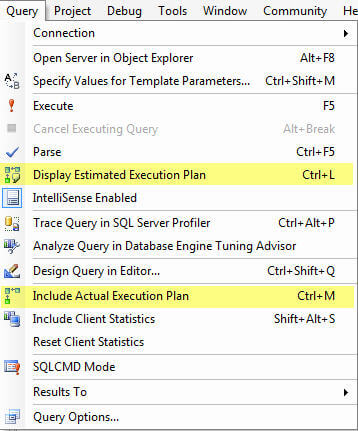
You can display the Estimated Execution Plan in SQL Management Studio by pressing CTRL + L in the query window or by clicking the Display Estimated Execution Plan button in the SSMS menu icons as shown below.

You can display the Actual Execution Plan in the results set by pressing CTRL + M or by clicking the Include Actual Execution Plan button in the SSMS menu icons as shown below.


Both of these options are also accessible from the Query menu in SSMS as shown below.

Once you turn on one of these options it will stay in affect for all queries that are run in that query window. Also, you can only select one of these options, it is not possible to have both turned on.

Courtesy : http://www.mssqltips.com/sqlservertutorial/2252/estimated-vs-actual-query-plan/